New · For kids

ThunderWave DJ

Their first DJ desk.
It sounds for real.

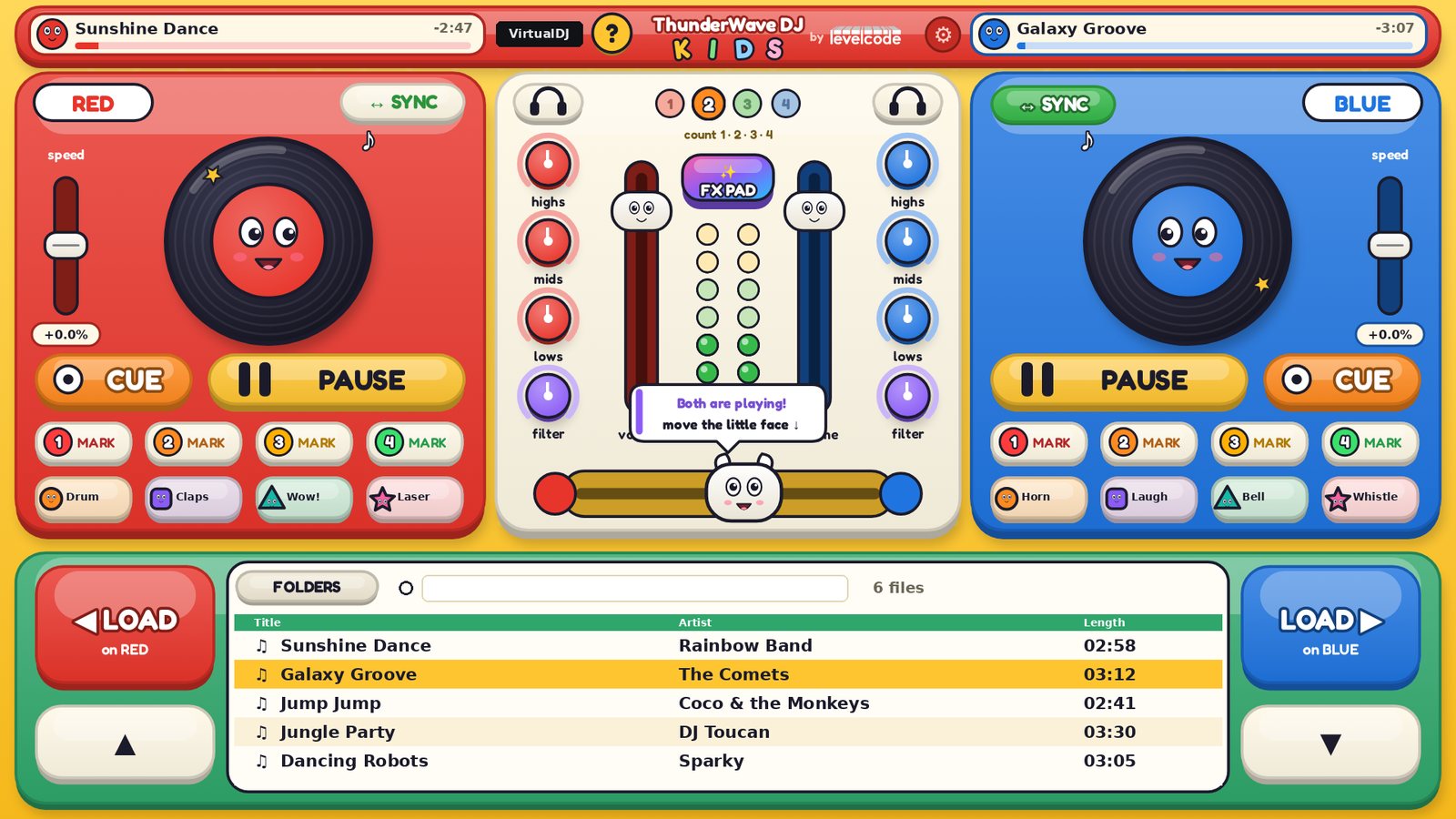
A toy‑shaped interface for VirtualDJ: smiling platters, big buttons and hints that say what to tap next. Install it, hand it over and let them mix.

Finger or mouse16:10 · 16:9English and SpanishHints + tutorial

Animated demo with the real interface, no sound.

Everything a controller has,
in kid size.

It's not a game: it's real VirtualDJ with a friendly face. What they learn here works on any DJ gear.

Two smiling decks

RED and BLUE. The platter smiles and opens its mouth when it plays, and you can scratch it with a finger.

PLAY, CUE and SYNC

Big buttons. SYNC puts both songs on the same beat so it always sounds right.

A real mixer

Highs, mids, lows, filter, volume, headphones and level lights on each side.

A crossfader with a face

Drag the little face to red or blue to go from one song to the other.

1‑2‑3‑4 counter

Lights that count the beat and teach when to mix: on the 1.

4 marks per deck

Save a moment of the song and jump back to it with one tap (hot cues).

8 named sounds

Characters that fire the Sampler sounds and show each one's name.

Magic effects

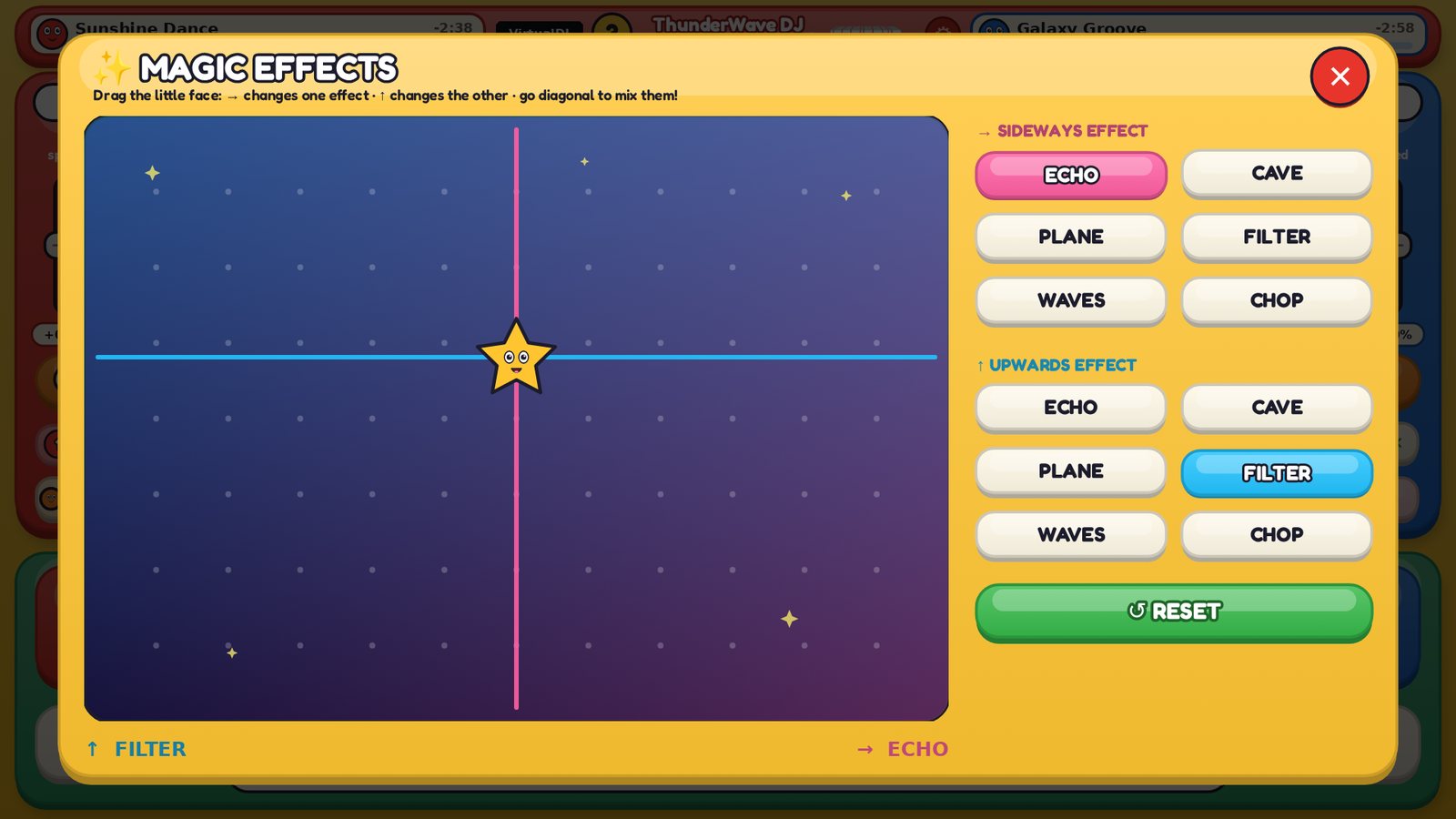
The whole screen as a pad: drag the star and blend ECHO, CAVE, PLANE, FILTER, WAVES and CHOP over the whole mix.

Easy song list

Big text, arrows, search and folders. Pick a song and tap LOAD on red or blue.

Hints

Bubbles that say the next step: pick a song, tap PLAY, move the little face. They can be turned off.

“How do I play?” tutorial

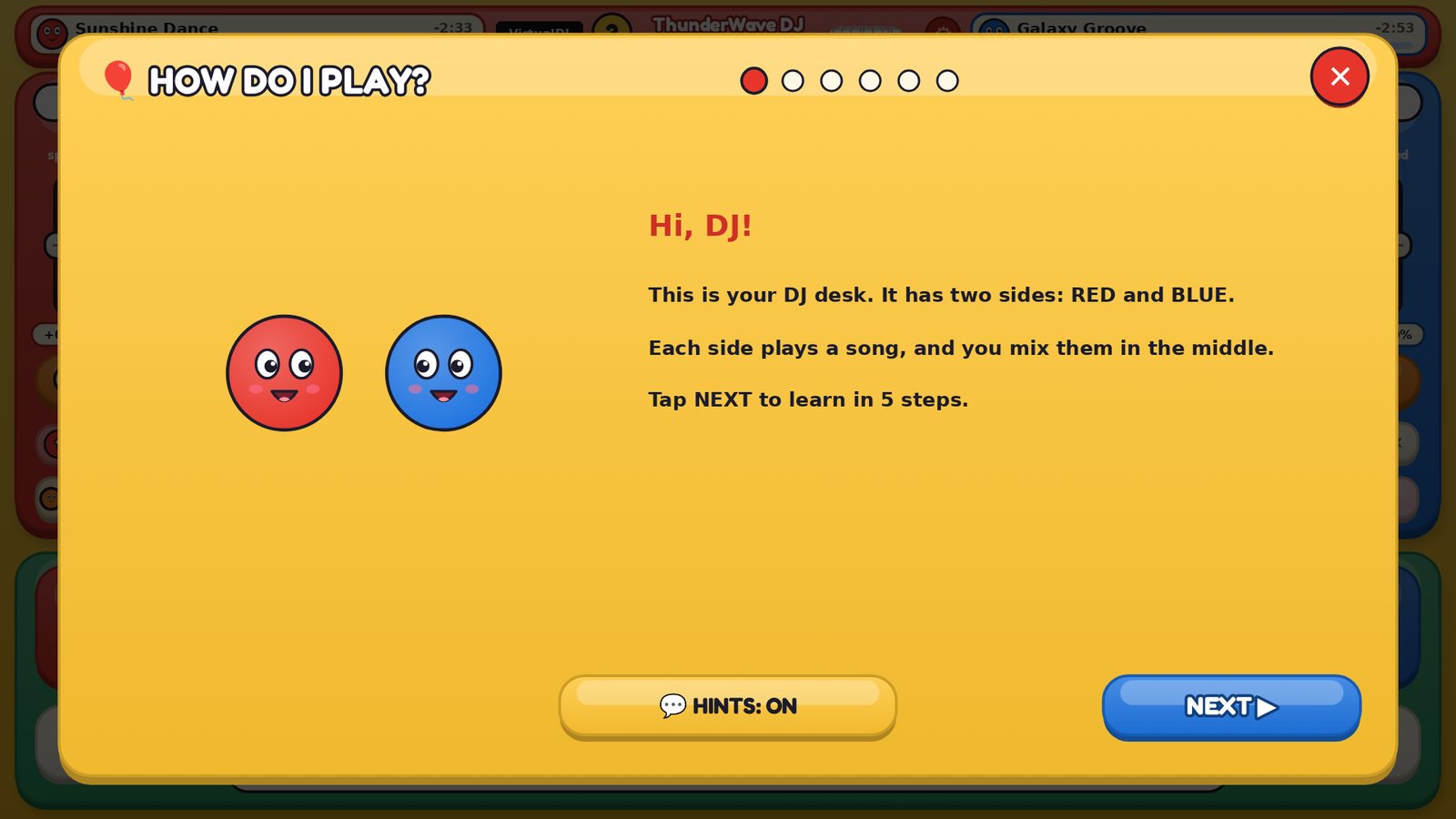
Six cards with the interface's own buttons. It opens by itself the first time, then with the ? button.

Finger or mouse

Nothing needs two fingers. It works on a touch tablet or on the family laptop.

ThunderWave DJ KIDS Magic effects window

Magic effects
with one finger.

The ✨ FX PAD button opens a starry sky. They drag the star: sideways changes one effect, upwards the other, and diagonally they blend both. RESET puts everything back.

Effects with names they understand: ECHO, CAVE, PLANE, FILTER, WAVES and CHOP.
They learn on their own,
step by step.

  1. Hints
    A bubble shows the next step right where to tap.
  2. “How do I play?” tutorial
    Six cards: load, PLAY, mix, sounds, marks and effects.
  3. 1‑2‑3‑4 counter
    The lights teach them to come in on time, like a real DJ.
ThunderWave DJ KIDS tutorial

At home

On the family laptop or a tablet, with headphones or a speaker.

Schools and DJ academies

A first class with no fear of buttons: the concepts are the same as on any controller.

Parties

Let the birthday kid play the music, with the little face and the star in everyone's view.

What you need

  • Windows with VirtualDJ installed (VirtualDJ license not included).
  • A touchscreen or a mouse. Tablet, laptop or All‑in‑One.
  • An adult to install it once: the installer does almost everything.

Look after their ears

  • With headphones, use kids' headphones with a volume limit.
  • Set Windows' overall volume to a comfortable level before they start.
  • Breaks are part of the party too.
ThunderWave DJ KIDS

Let's mix!

ThunderWave DJ KIDS
$12.99 USD
Buy KIDS

Separate product, not in the pack · 16:10 and 16:9 · English and Spanish · BASE included · 1 year of support · VirtualDJ license not included

Parents' questions

No. KIDS works the same with a finger or a mouse: nothing needs two fingers at once. A touchscreen is a bonus.

Yes. KIDS is an interface that runs inside VirtualDJ on Windows. A VirtualDJ license is not included; depending on use, VirtualDJ may require its own license.

VirtualDJ's settings sit behind the gear, which needs a double tap. The screen only shows the controls to play.

A Windows tablet or laptop. KIDS comes in 16:10 (1920×1200) and 16:9 (1920×1080), and the installer picks the right one. It's made for small screens, but it also looks good on a big one.

No. KIDS is a separate product for a different audience. It costs $12.99 USD and includes the free BASE, English and Spanish, and 1 year of support.

KIDS is built and tested for VirtualDJ on Windows.